Check people in at an event
Tick families in as they arrive at Stay & Play or another event, take what they owe, and add walk-ins.
Who can do this: coordinators and admins. It works well on a tablet.
Every event date has a check-in list on its Bookings tab. If you are running the desk at the same time, you can also check people in from the desk (see Check people in at the desk).
Steps
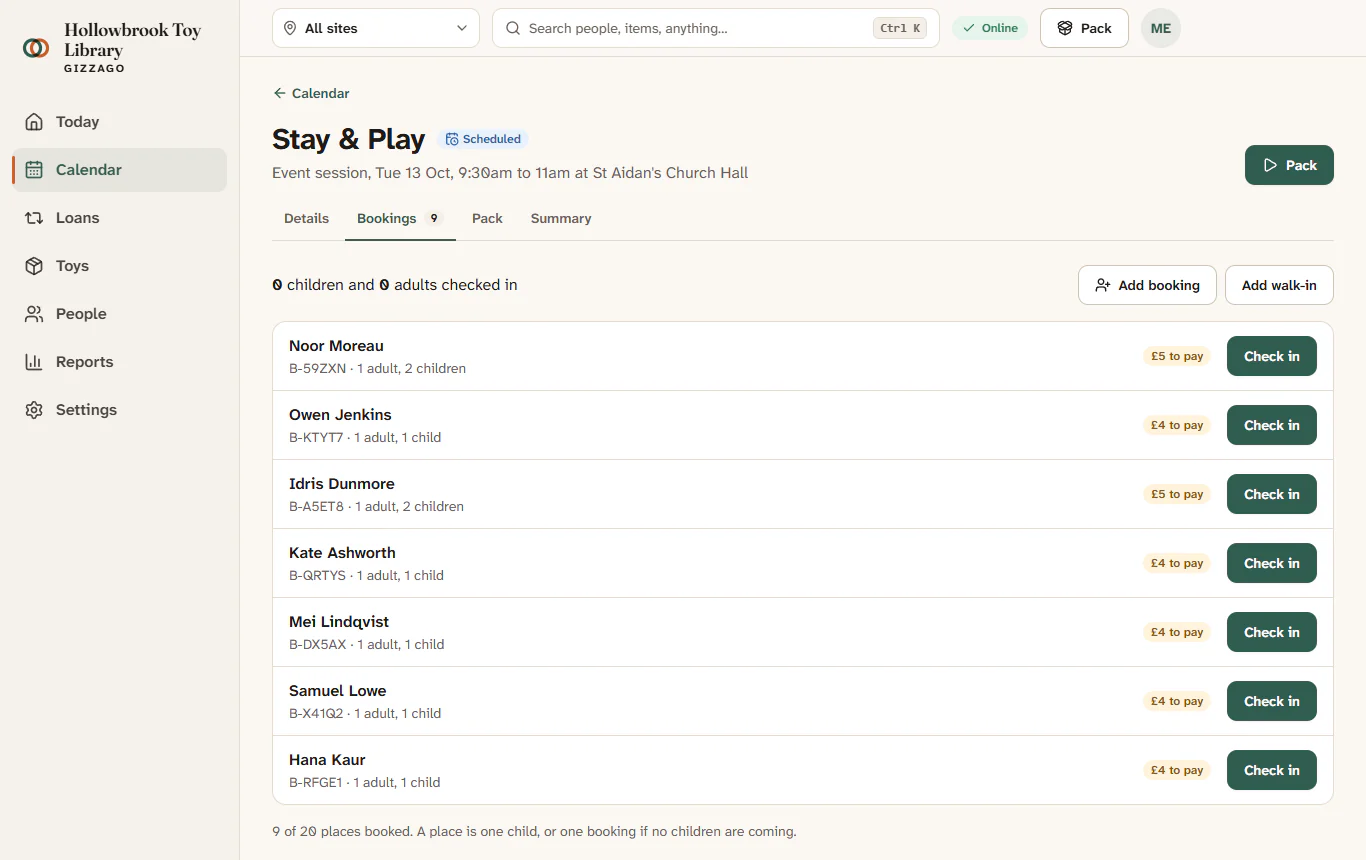
- Choose Calendar in the sidebar, then List, and click the event, for example the next Stay & Play.
- Choose the Bookings tab. You will see everyone booked, with totals at the top.
- When a family arrives, press Check in on their row, for example the row for Kate Ashworth.
- Check the number of Adults and Children and change them if more or fewer came.
- If they owe money, press the button for how they paid:
- Paid cash £4
- Paid by card £4, if you took it on your own card machine
- Check in, pay later, if they will pay another time If nothing is owed, just press Check in.
"Checked in". The row shows a Checked in badge and a Paid badge if they paid. The totals read, for example, "1 child and 1 adult checked in". The visit is added to the family's history.
Add a walk-in
- Press Add walk-in at the top of the list.
- Fill in the number of Adults and Children.
- Tick New to us if this family has never been before.
- Press Check in, paid cash, Check in, paid by card or Check in, pay later.
The walk-in appears in the list with the label "Walk-in", and the totals go up.
After the event
Anyone booked who was not checked in is marked "Did not come" a couple of hours after the event ends. The event's takings and attendance show on the session's Summary tab and in Sessions and cash-ups.