Edit, test or switch off a message
Make the automatic emails sound like your library, or stop one you do not want.
Who can do this: coordinators and admins.
Every automatic email has standard wording that works for most libraries. You can change its subject, add a few words of your own at the top, or switch it off. The main text stays the same, so the important details (dates, toys, links) are always right.
Steps: edit a message
- Press People in the sidebar, then the Messages tab, then Edit templates. (The same list is in Settings > Communications, under Email templates.)
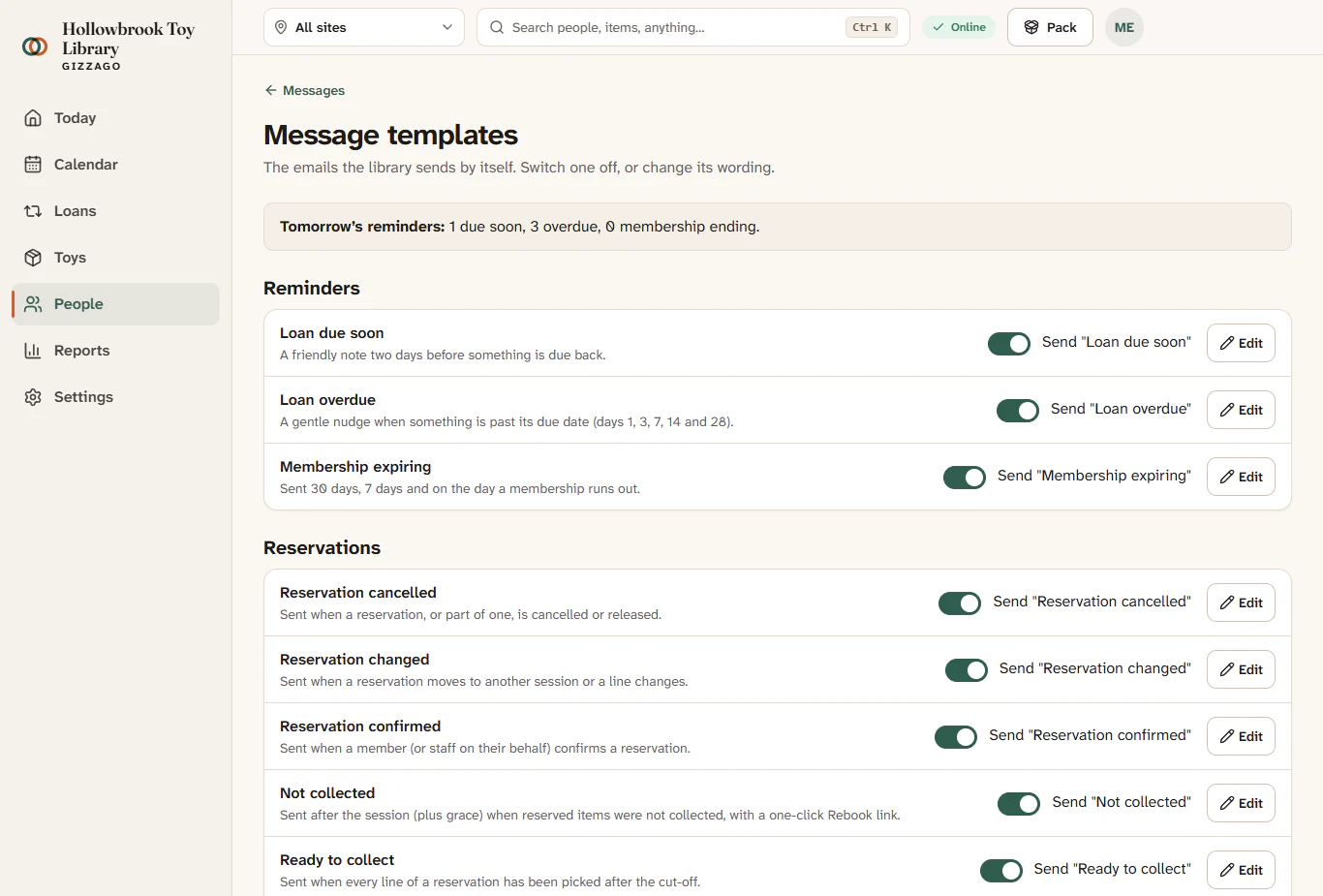
- The Message templates page lists the emails in groups: Reminders, Reservations, Membership and visits, and Sign-in and team.
- Press Edit next to the message, for example Loan due soon. A panel opens with a preview.
- Change the Subject if you want. The hint under it shows the standard subject.
- Type a short welcome in Add a few words at the top, for example "Thank you for borrowing from Hollowbrook!". Plain words only.
- Press Save.
A message says Message saved, the preview in the panel updates, and the message shows an Edited label in the list.
Send yourself a test
In the message's panel, press Send me a test. A message says Test sent to you. Check your inbox (once email sending is set up), or find the test at the top of the sent-mail log.
Switch a message off
- On the Message templates page, find the message.
- Turn off its switch, for example the one for Loan overdue.
A message says Message switched off, and Gizzago stops sending it from then on. Turn the switch on again to restart it (Message switched on). You can also use the Send this message switch inside the panel.
Some emails show Always sent instead of a switch, and Preview instead of Edit: receipts, sign-in links, team invitations and deletion confirmations. People need these, so they cannot be switched off or changed.
Go back to the standard wording
- Press Edit on the message.
- Press Reset. Gizzago asks Go back to the standard wording?
- Press Reset again. A message says Back to the standard wording.
Good to know
- Changes and resets are written in the audit log.
- The emails use your library's colour and logo automatically, and its name as the sender.
- Tomorrow's reminders, at the top of the page, shows how many reminders will go out tomorrow.