How members join
Know exactly what a new family sees when they join online, so you can help them through it.
Who can do this: anyone with an email address, on your library's public site. Coordinators and admins can read this to help families who get stuck.
Families can also join in person: a volunteer registers them at the desk (see Register a new family at the desk). The steps below are the online route.
Steps
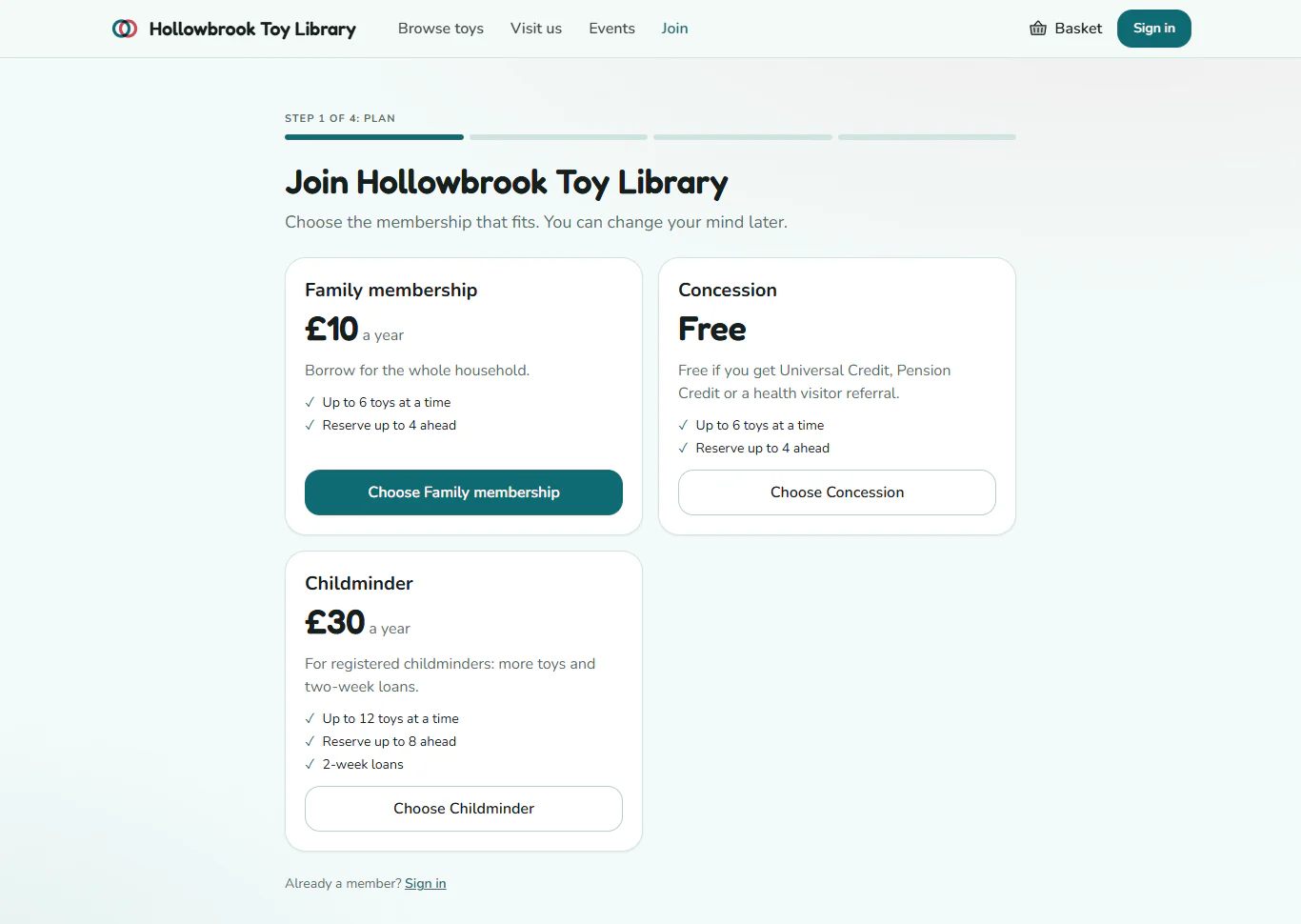
- On your library's site, press Join at the top of the page. The page lists your membership plans with their prices.
- Press Choose on the plan that fits, for example Choose Family membership.
- On Create your sign-in, fill in First name, Last name and Email address.
- Under How would you like to sign in?, pick With a password (at least 10 characters) or With an emailed link (no password to remember). Press Continue, or Email me a link and open the link from the email.
- On Nearly there, type the Postcode. If your library has more than one site, choose Where will you collect from? Your library may also ask for a phone number or address.
- Tick Email me news and offers (optional) only if they want news. Loan and membership emails are always sent.
- Tick the box to agree to the library's terms of membership and privacy notice, then press Continue.
- On Any children to tell us about?, press Add a child and choose a month and year of birth, then Save and continue. Or press Skip for now: children are never required.
- On a paid plan, the page says Pay £10 to finish joining (with your plan's price). Press Pay £10 online to pay by card, or Pay at the desk to pay at the first session. Free plans skip this step.
After paying online, the family sees You are in. Welcome to Hollowbrook Toy Library and a Go to my account button. Their household, member number and membership appear in People straight away.
If they chose Pay at the desk, they see Pay at the desk to start. Their membership waits until a volunteer takes the money at the desk, and then it starts. On a plan your library approves by hand, they see We are checking your details until a coordinator approves it.
Good to know
- Card payments need Stripe. The Pay online button only takes real money once your library has connected Stripe in Settings > Fees and payments. Until then, ask families to pay at the desk.
- Emails. Gizzago sends a welcome email and a receipt. Emails only leave Gizzago once your library's email sending is set up.
- Already a member? If the email address already has an account, the form says so and offers a Sign in link instead. After signing in, they can come back and join.
- Children. Gizzago only ever asks for a month and year, never a full birthday. See Children.
- Changing details later. Members can change their address, children and email choices from their own account.