What visitors see
Know what families see when they visit your library's site, so you can check it and point people to it.
Who can do this: anyone can visit your public site. Only admins can change how it looks.
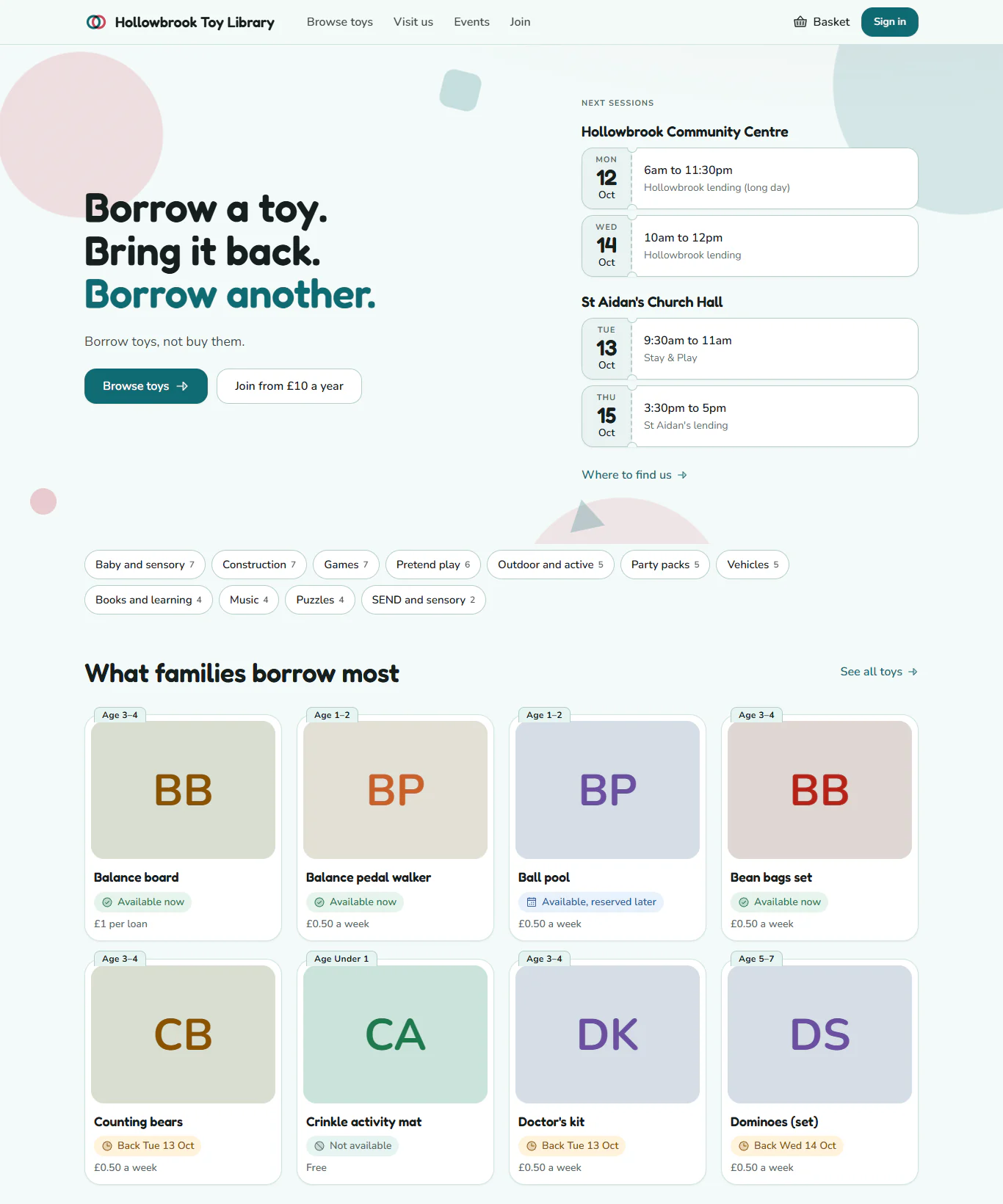
Every Gizzago library has its own public site. It works at your Gizzago address straight away, and can also have an address on your own domain (see Use your own web address). It wears your library's colours, fonts and logo, and it uses your own word for the things you lend.
Steps
- Open your public site in a browser. If you are signed in to Gizzago, you can also open it from Settings, Public site, with the icon in the preview that opens the page in a new tab.
- Look at the header at the top of every page. It has your logo (or your name), then:
- Browse toys: the catalogue, with filters for age, category and more, and a search box.
- Visit us: your sites, addresses and opening times.
- Events: Stay & Play and other events, with Book places buttons.
- Join: your membership plans and the joining form.
- Basket, for reserving toys, and Sign in (or Account once signed in).
- Scroll down the home page. It is built from sections you choose, such as a welcome with two buttons, your next sessions, shelves for each category, featured toys, how it works, numbers, events and a call to action.
- Click a toy. Its page shows its photos and details and whether it is available to reserve. Toy cards can show how many are free, for example "2 of 3 available".
- Scroll to the footer at the bottom. It shows any links you have added, then Help, Fees, Accessibility and Privacy, and "Registered charity number" with your number if you have given one.
The site works on phones, tablets and computers. Visitors whose device is set to dark mode see a darker version of your colours, which Gizzago works out for you so text stays readable.
What you can change
As an admin, open Settings, then Public site. From there you can change:
- Colours, fonts, icons and shape
- Logo, browser icon and welcome photo
- Home page sections and their words
- Footer links
Your changes stay in a draft, which visitors never see, until you press Publish changes (see Preview, publish or throw away).
Other parts of the public site come from elsewhere in Settings: plans on the Join page from Membership plans, opening times from the Calendar, and your name and charity number from Organisation.