Loans out, and chasing overdue toys
Know what is out, and nudge families kindly when something is late.
Who can do this: coordinators and admins.
Gizzago already sends reminders by itself: one before a toy is due, and more on the days after it is late (see Reminders: due soon, overdue and membership ending). This page is for when you want to see the picture or chase by hand.
See what is out
- Press Loans in the sidebar. The Out now tab opens, soonest due first.
- The header shows the counts, for example 22 out now · 0 due today · 7 overdue. Each count is a link.
- Use the tabs Out now, Due today, Overdue, Reservations, Waitlist and All.
- Type in Search by item, code or borrower to find one loan. Press Load more at the bottom for older rows.
- Press a row to open the loan's panel: Borrower, when it went Out, when it is Due (and how many days late), Reminders sent so far, Renewals, Hire fee, Pieces and its history.
Chase all overdue loans at once
- Go to the Overdue tab.
- Choose a view: All overdue, or To chase (only those not reminded in the last three days).
- Tick the box at the top of the list (Select all rows). The bar says, for example, 7 selected.
- Press Send reminder.
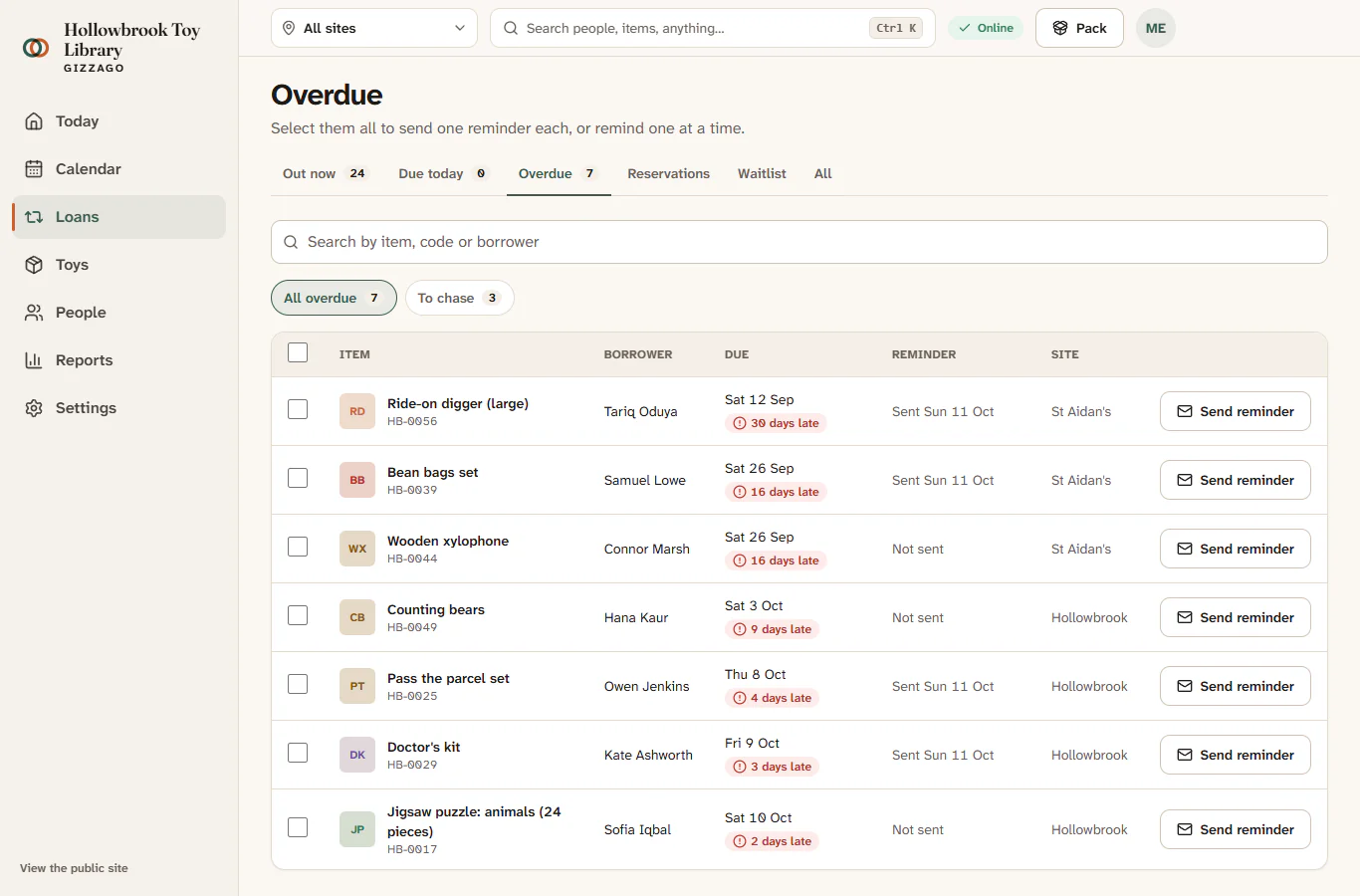
A message says, for example, 7 reminders sent, and each row now shows Chased today. Each family gets one kind email, and the email is noted on their timeline.
Chase one loan
- Open the loan's panel by pressing its row.
- Press Send reminder. A message says Reminder sent, and the button changes to Chased today.
If the message says No reminder sent, the family was already chased today or has no email address. Phone them instead.
How the reminders step up
Each reminder moves the loan one step along a ladder: 1, 3, 7, 14 and 28 days late, by default. The wording stays kind at every step. Gizzago does not send two reminders on the same day, and late fees are off unless your library turns them on in Settings > Borrowing.
Reminder emails only leave Gizzago once your library's email sending is set up. Until then they are recorded in the sent-mail log only.
When the toy comes back
Toys come back at the desk. The Return button on a row opens the desk with that toy ready to check in (a session must be open). See Take toys back and check the pieces.