Run the desk on your own phone
Run a whole session from the phone in your pocket: pack, lend, take money, take returns and cash up.
Who can do this: coordinators and admins, signed in on their own phone (or their own laptop).
You do not need a shared desk device. Because you are already signed in as yourself, the desk opens straight away. There is no Who's on the desk? list, no PIN, and the desk does not lock itself after two minutes. Everything you do is recorded under your name.
Volunteers who do not sign in to Gizzago still use a shared desk device with their PIN. See Set up a shared desk device.
Steps: open the desk
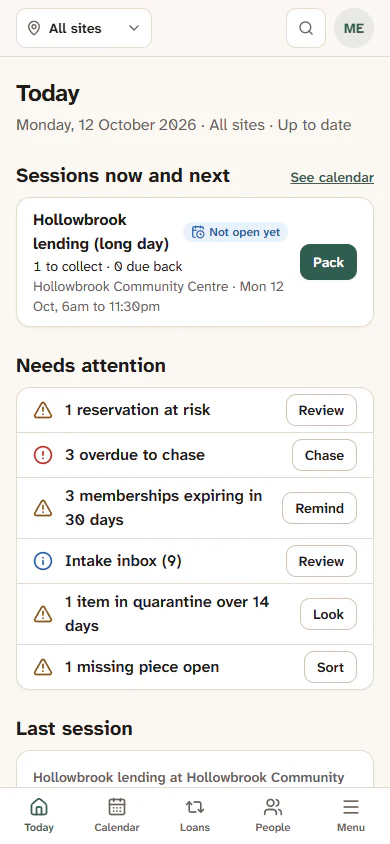
- Sign in on your phone. You land on Today.
- Under the title is the desk button. What it says depends on your session:
- Start today's session: a session is in the calendar today and has not started yet;
- Open desk: the session is already open;
- Cash up: the session is being cashed up;
- Start a session now: there is nothing in the calendar today. This starts a drop-in session at your site.
- Press it. The desk opens.
If your library has more than one site, choose the site in the Desk site box next to the button first. Gizzago remembers the last site you chose on this phone, so next time it is already picked.
The same button is the first row of Menu in the bottom bar, so you can reach the desk from any page.
The desk on a phone
When nobody is loaded, the desk shows two lists under the search box:
- Reserved for today at your site, with each family and how many toys they reserved. Tap a family to load them with their reserved toys already on the visit.
- Due back today, with each family and their toys. Tap Return next to a toy to take it back.
To find anyone or anything else, tap Search people or toys and type a name, or a toy's name or number. See Run the desk without a scanner.
Steps: lend and take payment
- Load the family, from Reserved for today or by searching.
- A short header shows how many toys they have out against their limit (for example "2 of 6 out"), whether they owe anything (Owes nothing) and Next member.
- Add toys by typing their name or number. Each joins the visit as a line.
- Press the bar at the bottom: Done · £4 (with your total).
- Choose Cash or Card.
- Cash: type the Amount given, or tap one of the Quick amounts (Exact, £5, £10, £20). The change shows in large type, for example "Change: £16". Press Take £4 cash.
- Card: the desk says "Use your card reader, then tap Finish payment. If it declines, try again: it is the same payment." Press Finish payment, £4 once the reader says it went through.
- You see "All done for" the family. Press Next member.
"All done for Omar Bishop", with the change to give if they paid cash. The toys are on Omar's account.
Need to go back a step? The phone's own back button takes you from Pay back to the visit, and nothing on the visit is lost.
Steps: take a toy back
- Tap Return next to it in Due back today, or search for the toy and tap Return.
- The return card asks Are all the pieces there? Tap All there or Some missing.
- For Some missing, step the number missing (or tap the missing pieces), and check Where does it go?.
- Press the big button: All there, return it or Return, 1 piece missing.
Any late fee or missing-piece charge shows in a highlighted row once the toy is back. See Take toys back and check the pieces.
Pack, cash up and the summary
The other stages work on a phone too. Tap the stage name in the header.
- Pack: tick off reserved toys with Mark picked or Not found. Open desk sits at the bottom of the screen. See Pack for a session.
- Cash-up: type the Float in the tin at the start and the Cash counted now. The expected and counted amounts sit side by side, with any difference in large type. Press Finish session at the bottom. See Cash up and close the session.
- Summary: the four lines on how the session went, then Back to Today.
Lend a toy that is not in the catalogue
Type its name and press Lend it anyway. Under it, Take a photo opens your phone's camera and Choose from photos picks one you already took. The photo uploads in the background, so you can press Add and lend straight away. See Lend a toy that is not in the catalogue.