The four stages of a session
Everything that happens at a session happens on one screen, in four stages.
Who this is for: desk volunteers, and coordinators who run or help at sessions.
A session is a time your library is open to lend, such as "Saturday 9:30am to 11:30am at Hollowbrook Community Centre". Sessions come from your weekly rules, or you can start one on the spot.
The session screen fills the whole screen. There is no sidebar and no lists to wander into: just the session. The stage names run along the header.
You do not need special kit. Any laptop, Chromebook, tablet or phone with a modern web browser can run the desk, and you do not need a barcode scanner or member cards. Volunteers use a shared desk device with their own PIN (see Set up a shared desk device). Coordinators can also run it on their own phone (see Run the desk on your own phone).
| Stage | When | What you do |
|---|---|---|
| Pack | Before you open | Gather reserved toys from the pick list, see what is due back, who is collecting for the first time and what needs bringing from another site. See Pack for a session. |
| Desk | While you are open | Lend, take back, check pieces, take payments, register families, renew memberships and check people in. See Lend toys. |
| Cash-up | After the last family | Count the tin, note any difference, tidy loose ends. See Cash up and close the session. |
| Summary | Once closed | Four lines on how it went, the cash-up and a handover note for next time. |
The header
Along the top of the session screen you will see:
- the site and the session times,
- the four stages (1 Pack, 2 Desk, 3 Cash-up, 4 Summary), with the current one highlighted; tap one to move to it,
- your name: tap it for Switch (hand over to another volunteer) and Lock (lock the desk now),
- whether the desk is Online,
- coordinators also see Exit, back to the rest of Gizzago.
The Desk stage in one breath
The box at the top is the search box (some libraries call it the scan bar). Whatever you type or scan decides what happens:
- A member's name and Enter loads that member, ready to lend. If more than one person or toy matches, you see People and Toys together and pick one.
- A toy's number (the code on the toy, such as HB-0020) works exactly like scanning it.
- A toy that is out on loan starts a return. No member needed.
- A toy on the shelf, with a member loaded, adds it to their visit.
A barcode scanner, if you have one, just types the code for you. See Run the desk without a scanner.
The member's details sit on the right with a Pay panel when you press Done. A drawer along the bottom holds To collect (reservations for today), Due back, the Floor queue (toys waiting to be counted) and Arrivals (people booked onto an event).
The desk never pops up a box in your way. If something needs a decision, such as a toy reserved for someone else, it appears on that line with the choices beside it.
On a phone, the member's details and the Pay panel take turns on the screen instead, and the lists for today (Reserved for today and Due back today) sit under the search box.
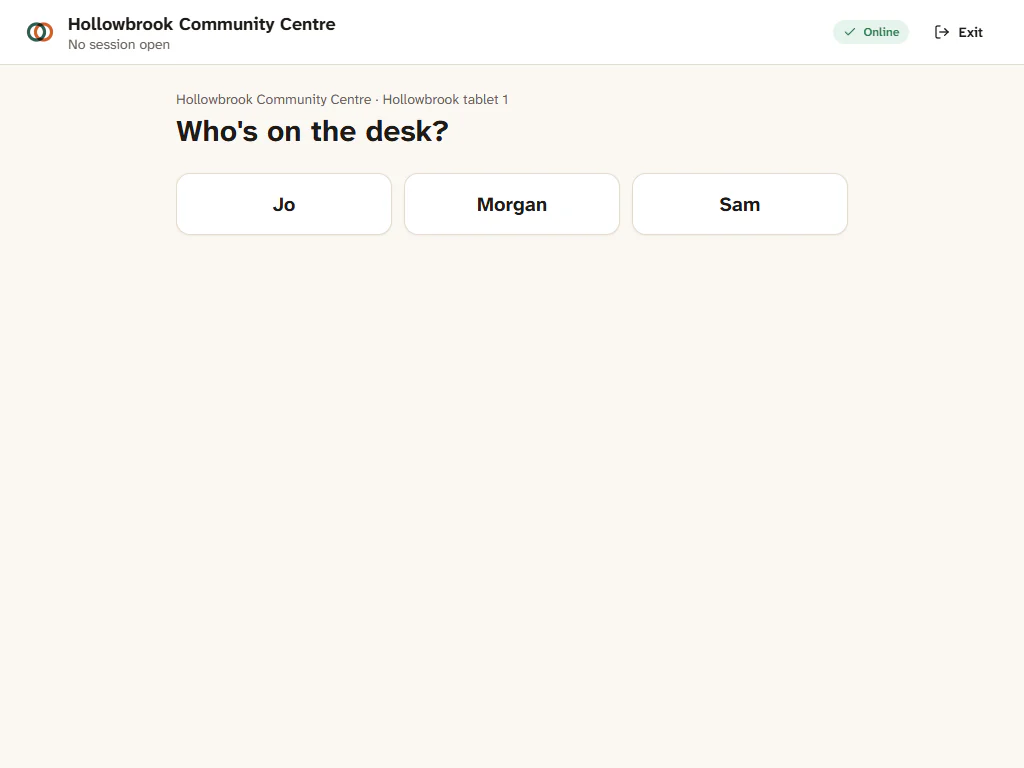
When no session is open at your site, the desk offers to start one now. When one is open, unlocking the desk takes you straight into it at the stage it is in.