Run the desk without a scanner
Lend and take back toys by typing. No barcode scanner, no member cards.
Who can do this: desk volunteers, coordinators and admins, with the desk open.
Many libraries have no barcode scanner, and families do not carry cards. That is fine. In the desk's search box you can type:
- a member's name, such as "ashworth",
- a toy's name, such as "wooden block",
- a toy's number, the code written or stuck on the toy, such as "HB-0020".
Typing a toy's number works exactly like scanning it. If you do have a scanner, it still works: a scanner just types the code for you.
Choose how your desk talks
An admin or coordinator sets this once, in Settings > Borrowing.
- Choose Settings in the sidebar, then Borrowing.
- Under Loan rules, find We scan barcodes at the desk.
- Leave it off if your volunteers type names and toy numbers. Switch it on if you scan labels and member cards.
- Press Save.
It is off to start with for a new library. Only the desk's words change: a scanner works either way.
"Loan rules saved". With it off, the desk's box reads Type a member's name, or a toy's name or number. With it on, it reads Scan a member card, or type three letters.
Steps: lend by typing
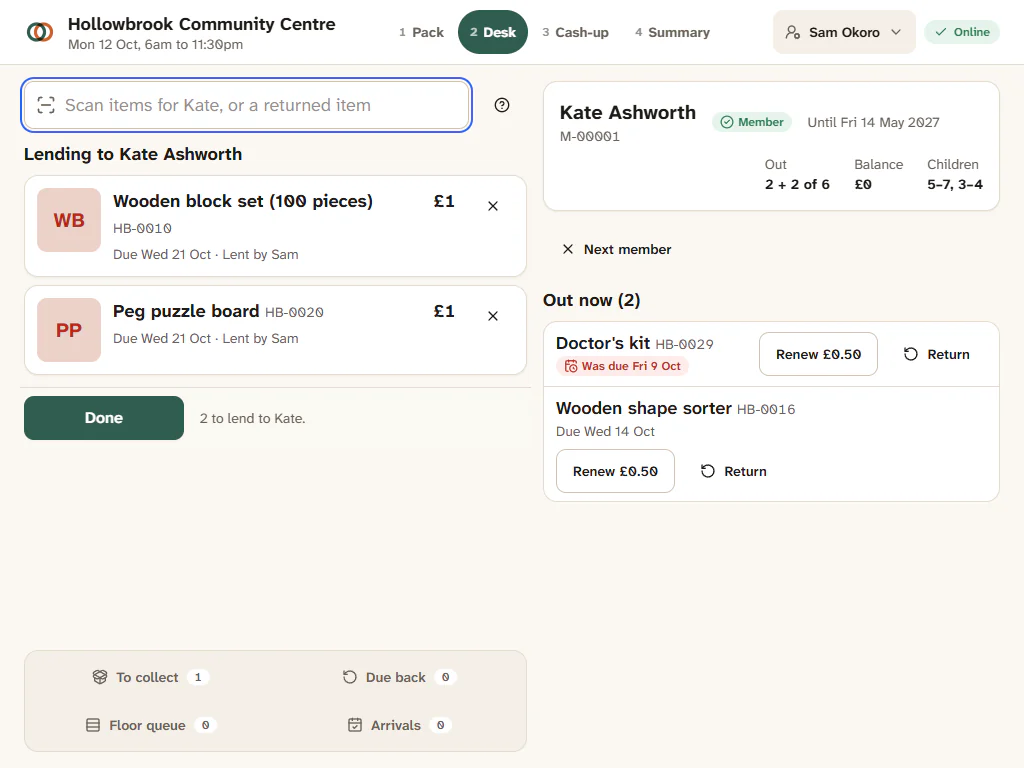
- In the box, type the member's name, for example "Ashworth", and press Enter.
- If only one person matches, they load straight away. Otherwise you see Results for "Ashworth", with People and Toys listed together. Tap the person, or press ↓ to move into the list and Enter to pick.
- Type the toy's name, for example "Wooden block", and press Enter. Under Toys like "Wooden block", choose it and press Lend to Kate (with your member's first name). It joins the visit as a line.
- Or type the toy's number, for example "HB-0020", and press Enter. It is added straight away, just as if you had scanned it.
- Press Done (it shows the total, such as Done · £2) and take payment as usual. See Take a payment.
"All done for Kate Ashworth", with the change to give if they paid cash.
Steps: a toy comes back, and nobody is loaded
You do not need the member to take a toy back.
- With nobody loaded, type the toy's name, for example "Wooden block", and press Enter.
- Under Toys, the copies on loan come first. Each says who has it, such as "On loan to Kate Ashworth, due ...", with a Return button.
- Press Return on the right one. The return card opens.
- Check the pieces and press All there, return it (or Enter). See Take toys back and check the pieces.
Typing the toy's number instead goes straight to the return card.
When nothing matches
If you type a name nobody has, the desk says, for example, Nobody called "Zzyzx". and No toys called "Zzyzx"., with Register new member for a new family. Press Esc to close the results.
A number the desk does not know as a toy is also checked against member numbers and the last four digits of phone numbers. If it still finds nothing, it says it does not know the code and offers Add this item now.
Keys that help on a laptop
| Key | What it does |
|---|---|
| Enter | Search for what you typed. With results open, pick the first one. |
| ↓ and ↑ | Move from the box into the results, and through them |
| Enter on a result | Pick it |
| Esc | Close the results |
| / | Jump back to the box |
See Keyboard shortcuts for the rest.
Tips
- Write the number on the toy. A sticker or a bit of masking tape with "HB-0020" makes returns quick.
- Member numbers work too. If a family knows their member number, type it.
- A toy with no number? Type its name, or lend it as a toy not in the catalogue. See Lend a toy that is not in the catalogue.