Team and devices
Control who can sign in to run the library, what they can do, and which devices run the desk.
Who can do this: admins invite people and change roles. Coordinators can see and turn off desk devices.
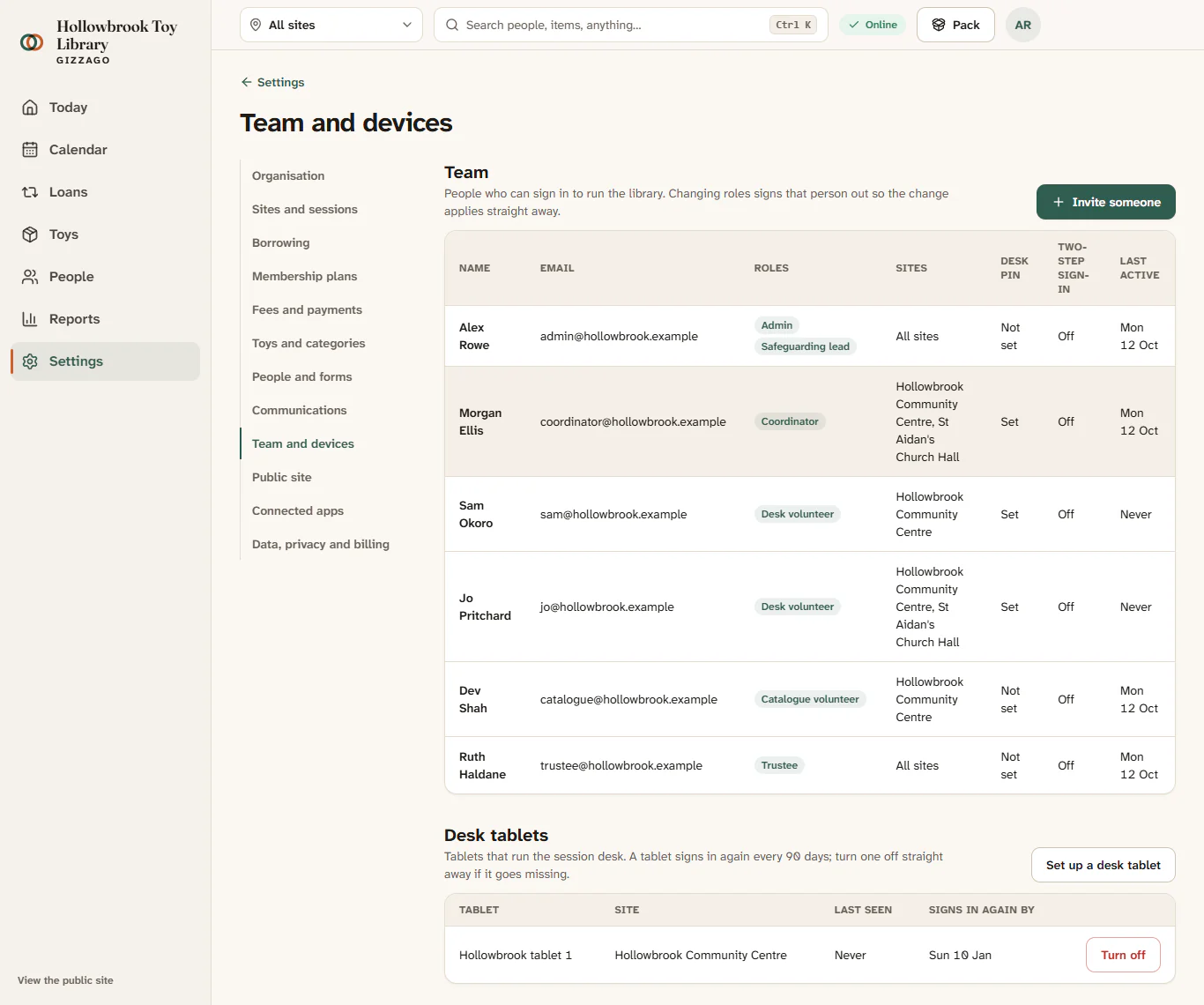
This group has two parts: Team (the people who can sign in) and Desk devices (the shared computers, laptops, Chromebooks, tablets or phones set up to run the session desk). The team table shows each person's Roles, Sites, whether they have a Desk PIN, whether they use Two-step sign-in, and when they were Last active.
Steps
Invite someone
- Choose Settings in the sidebar, then Team and devices.
- Press Invite someone. A panel opens.
- Type their Email address.
- Optional: type Their name (optional). It shows in the email and on the page they open, which helps when several people read one inbox.
- Tick their roles. Each role has a line explaining it:
- Admin: everything, including settings and money.
- Coordinator: runs the library day to day.
- Trustee: reads reports and Today, and cannot change anything.
- Catalogue volunteer: adds and tidies toys.
- Desk volunteer: works the session desk with a PIN.
- Safeguarding lead: sees safeguarding notes. Add this alongside another role.
- If you have more than one site, choose their Sites.
- Leave Send the invitation email now ticked to email them straight away. Untick it to add them now and send the invitation later.
- Press Send invitation (or Add without sending), then confirm it's you with your password or passkey.
"Invitation sent", and they are listed under Waiting to accept until they choose a password. The link works for 7 days. To take it back, press Cancel invitation, then Cancel it. If you added them without sending, you see "Added, not sent yet" and they are listed under Not sent yet.
For sending later, sending several at once and shared email inboxes, see Invite your team.
Change someone's roles
- Click their row in the team table.
- Tick or untick roles, then press Save roles and confirm it's you.
They are signed out so the change applies straight away.
Reset a desk PIN
- Click their row and go to Desk PIN.
- Type a six-digit New PIN and press Reset PIN. Tell them the new PIN in person.
Remove someone from the team
- Click their row and go to Remove from the team.
- Press Remove, then Remove them.
Turn off a desk device
If a shared desk device goes missing, turn it off straight away.
- Under Desk devices, find it by name and site.
- Press Turn off, then Turn it off.
You will see "Desk device turned off". To add one, press Set up a desk device on that computer or device, signed in as a coordinator. Each desk device signs in again every 90 days.
Coordinators who run the desk on their own phone or laptop do not need to set it up as a desk device. See Run the desk on your own phone.