Photograph donations with Capture
Work through a box of donations quickly: photograph each toy, say what you know, and move on.
Who can do this: catalogue volunteers, coordinators and admins. Desk volunteers cannot open Capture.
Capture is part of Gizzago, under Toys > Add toys. It works best on a phone. You take the photos and add a note; Gizzago suggests the details (name, category, age, contents and so on), and a person checks every value before anything reaches the catalogue.
Steps
Start a project
A project is one batch of donations, for example "Autumn donations" or "Storeroom shelf 3".
- In the sidebar, choose Toys, then Add toys, then Capture with a phone.
- Press New project.
- Enter a Project name and, under What to collect, choose Toy library item.
- Press Create project. The capture screen opens.
To carry on with an existing project, click its card, then press Capture items.
Capture each toy
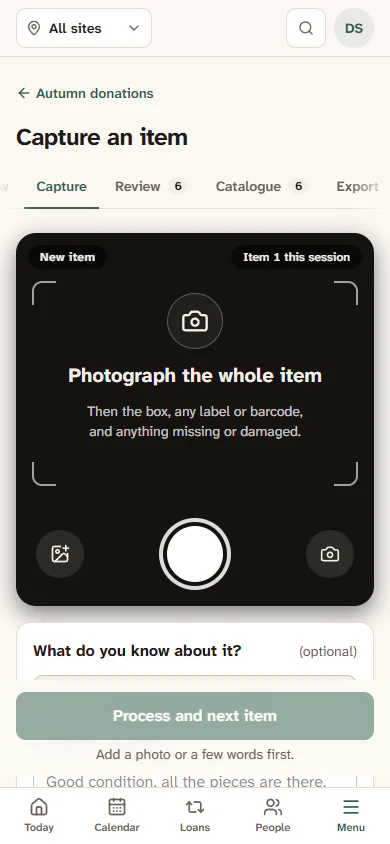
- Photograph the whole toy first. Then the box, any label or barcode, and anything missing or damaged. On a phone, Take a photo opens your phone's own camera, and Choose from photos picks several you already took. Hold each toy against a plain wall or table so it's easy to see. On a computer with a camera, you can also turn the live camera on.
- Under What do you know about it?, press Record a voice note and say what you know, or type a few words, for example "Good condition, all the pieces are there, ages 3+".
- If your library has it, tick Look it up online too (price, contents).
- Press Process and next item. The screen clears for the next toy.
A message such as "AD-0007 is processing. Ready for the next one." The Processing list shows each toy moving through "Reading the photos and notes" and "Checking against the profile", then "6 details found" with a Review button. Toys keep processing while you capture the next one.
When the button is greyed out
Process and next item says why underneath, for example "Add a photo or a few words first." or "Stop the recording first."
Tips
- Each photo shows at once under Photos of this item. It is shrunk on the phone and uploads in the background, so you can carry on with the next photo.
- iPhone photos in HEIC format work when your phone's browser can read them; they are sent as JPEG. If Capture says it can't read them, set the camera to Most Compatible, or choose a JPEG.
- If your browser cannot record, Capture says "Voice notes need a newer browser here. Type instead."
- Each toy gets a Capture label such as AD-0007. You can write it on a sticky note to keep the toy and its record together until it has a proper label.
Change what Capture collects
- Open the project's Overview tab.
- Under Profile: what to collect, press Edit on a field, or Add a field.
- Set the name, the kind of answer, and whether it is Needed before a record can be approved. Untick The AI may suggest it from the photos for anything that should only come from a volunteer's note or the print on the box.
- Press Save field.