Find a toy in the catalogue
Find any toy your library owns, see whether it is in, and open its page.
Who can do this: catalogue volunteers, coordinators and admins. Desk volunteers look toys up at the desk instead.
Gizzago uses your library's own word for the things you lend. Hollowbrook Toy Library sees Toys; a tool library sees Tools. This guide says "toy" throughout.
Steps
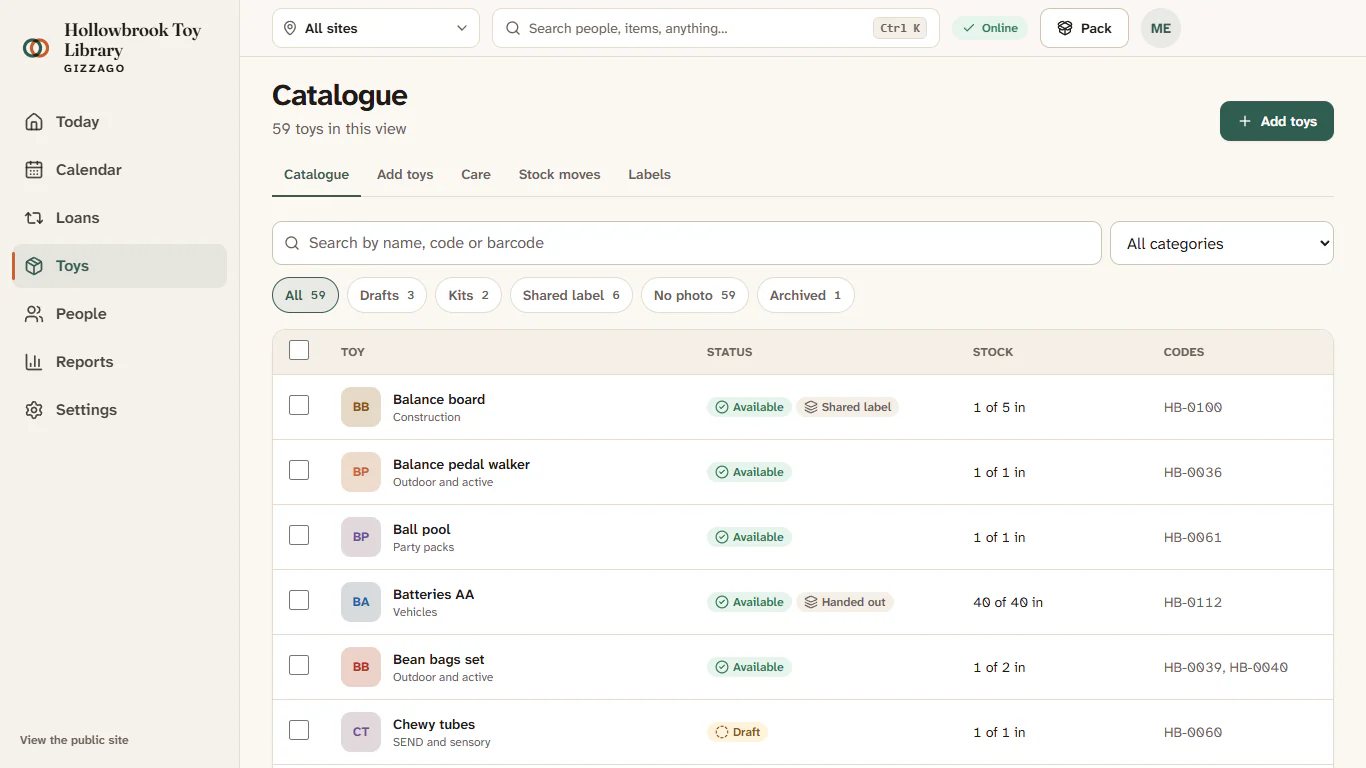
- In the sidebar, choose Toys. The Catalogue tab opens. The heading tells you how many toys are in this view.
- Type in the search box (it says Search by name, code or barcode). The list narrows as you type, so there is no button to press. You can type part of a name ("balance"), a label code ("HB-0100") or the number under a barcode.
- To see one category only, open the menu next to the search box (it starts on All categories) and choose one, for example Pretend play.
- Use the views under the search box to narrow the list further. Each shows a count:
- All: everything except archived toys.
- Drafts: toys that are not live yet. Nothing in Drafts shows on your website.
- Kits: party packs, crates and other kits.
- Shared label: toys where several identical units share one code (counted stock).
- No photo: toys still waiting for a photo.
- Archived: toys you have taken out of the catalogue.
- Read the row. Each toy shows its photo and categories, a Status badge (a draft or archived badge, or whether a copy is on the shelf), a Stock summary such as "1 of 5 in · 1 in repair", and its Codes.
- Click a row to open the toy's page.
- If the list is long, press Next at the bottom for the next page.
Find a toy from anywhere
Press Ctrl + K (Cmd + K on a Mac), or click Search or run a command in the top bar, and type a toy's name or code. You can also type a command such as "Print labels" or "Intake inbox" to jump straight there.
The list changes as you type. If nothing matches, Gizzago says Nothing matches and offers Show everything to clear the search and the filters. If your library has no toys yet, it offers Add toys instead.
Tips
- The search finds drafts and kits as well as live toys. Archived toys only appear in the Archived view.
- "In" means on the shelf and free to lend now. Toys being cleaned, mended or counted are not "in".
- To find several toys and change them together, tick their rows. See Print labels and edit many toys at once.