The Intake inbox
Accept new toys from Capture and imports into the catalogue, one at a time or all together.
Who can do this: coordinators and admins accept toys. Catalogue volunteers can open the inbox, tidy the details and reject records, but not accept them.
The Intake inbox is where toys wait between Capture (or an imported file) and the catalogue. Accepting a toy makes it a draft. It is still not on your website until someone makes it live.
Steps
- In the sidebar, choose Toys, then Add toys, then Intake inbox. The card shows how many are waiting.
- Read each row: the photo, the name, the category and, where needed, one hint:
- "3 details to check": some values have not been confirmed.
- "Looks like Ball pool. Another copy?": it may be a toy you already have.
- "Looks like wooden train, lent before it was catalogued. Fill it in?": it matches a toy the desk lent before it was described.
- "Changed in Capture after someone edited it here.": a conflict.
- Click the toy's name to open Check the details. Correct the Name, Brand, Category, Age, Condition, Barcode number, Replacement value, Description, Notes, Site or Quantity (more than 1 makes one counted item).
- Press Save and accept (catalogue volunteers see Save).
- Or use the button on the row:
- Accept: a new toy, as a draft.
- Add as another copy: a new labelled copy of the toy it looks like. (For counted stock it says Add to the count.) If it is really a different toy, open the row's menu and choose Accept as a new toy.
- Fill in wooden train: the details and photos go onto the toy the desk has been lending. Its code and loans stay as they are.
- Use Capture's version: for a conflict. To keep the version edited in Gizzago, choose Keep ours from the row's menu.
- To accept several, tick their rows and press Accept 2 as drafts. To accept everything shown, press Accept all 4 as drafts at the top. Conflicts are left out; each needs its own choice.
- To throw a record away, choose Reject from its menu.
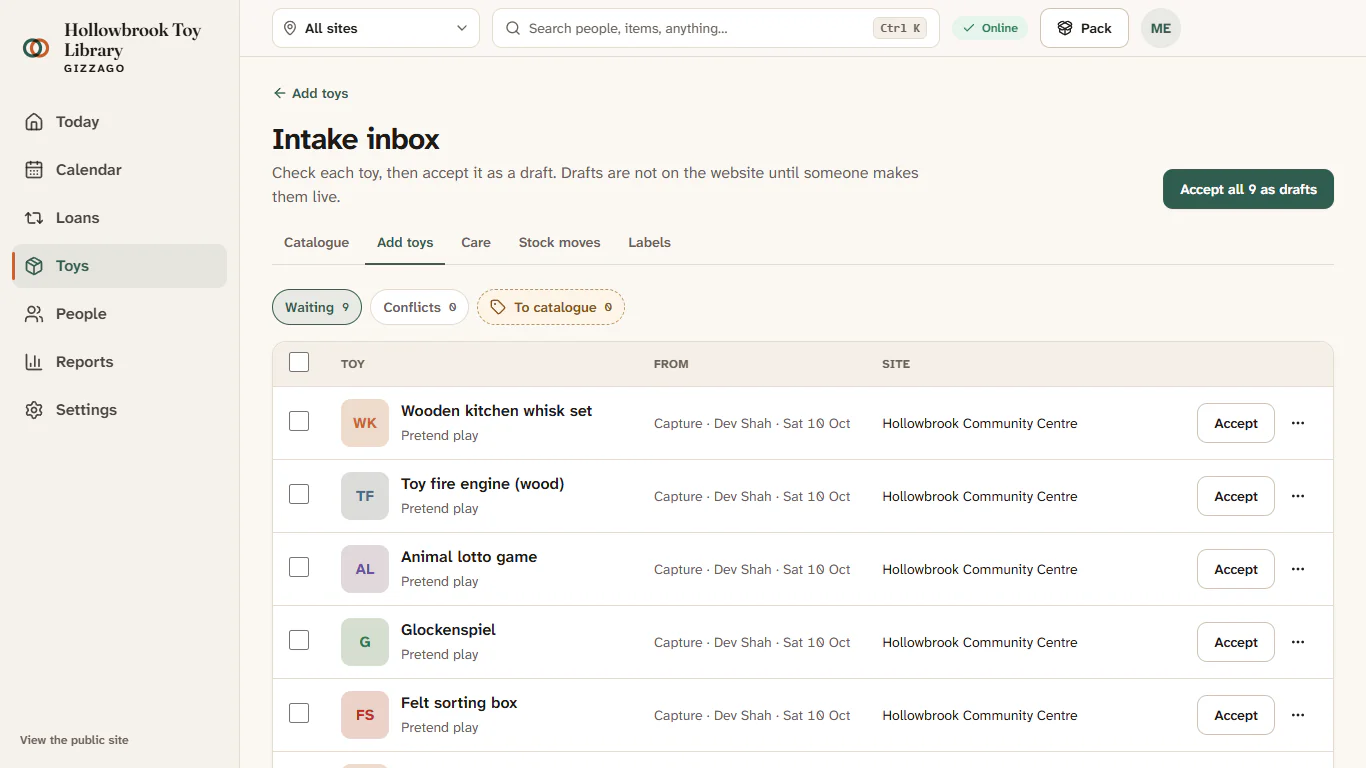
What you'll see
A message such as "2 drafts added to the catalogue". The rows leave the inbox. Find the new toys in Toys > Catalogue > Drafts, check their photos and press Make live.
Finding things in the inbox
- Waiting shows everything; Conflicts shows only conflicts.
- The To catalogue chip jumps to toys the desk lent before they were described. See The To catalogue queue.
- After an import, the From menu shows one file at a time (choose All imports to see everything).